Sign packages with the Package Manager window
Export and sign your Unity Package Manager (UPM) package so you can share it with others.
Starting with Unity 6.3, publishers can create a signed package directly from the Package Manager window. For other methods, refer to Methods for signing packages.
To sign a package from the Package Manager window:
Make sure you’re signed in to the Unity Hub.
Open the Package Manager Window.
Select the package you want to sign.
-
Select Export.
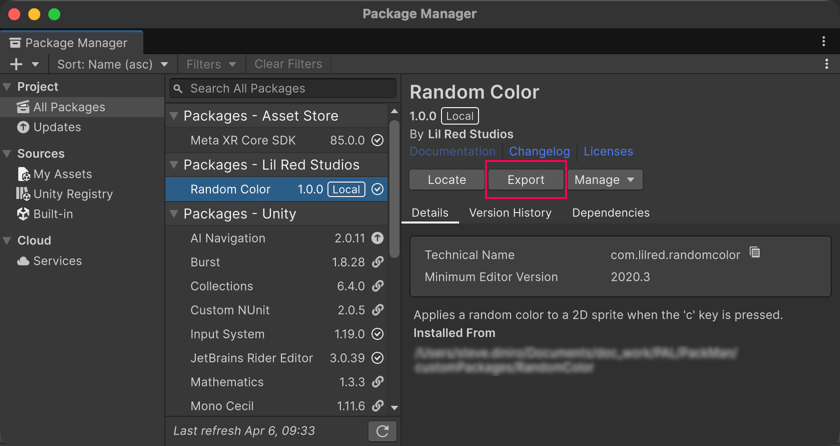
The Package Manager window with the Export button for an editable package Note: Another way to access the export dialog is with the menus. Go to the Project window and select the base folder for your package in the
Packagesfolder. Open the Assets menu (or right-click your package folder) and select Export As UPM PackageA Package managed by the Unity Package Manager. Refer to Packages.
See in Glossary. -
In the Export Package dialog that appears, open the Authoring Org menu and select the organization you want to associate this package with.
Note: For large projects whose contributors span multiple organizations, be sure to select the wider organization (or company-wide organization). If that organization doesn’t exist yet, refer to Considerations for companies with multiple organizations.
-
Select a location to store the signed package and select Select Folder (Windows) or Choose (macOS).
Note: If the package already exists in that location, a warning message prompts you to confirm overwriting the file.
When the export process completes, your file management application opens at the location you specified, showing you the newly created file. A confirmation message also displays in the Console window.
The export operation creates a tarball file (.tgz), which is a compressed archive file. This tarball file contains an encrypted file (.attestation.p7m), which contains the package signature.
Additional resources
Copyright © 2023 Unity Technologies
优美缔软件(上海)有限公司 版权所有
"Unity"、Unity 徽标及其他 Unity 商标是 Unity Technologies 或其附属机构在美国及其他地区的商标或注册商标。其他名称或品牌是其各自所有者的商标。
公安部备案号:
31010902002961