Preset Manager project settings reference
Use the Preset Manager project settings (menu: Edit > Project SettingsA broad collection of settings which allow you to configure how Physics, Audio, Networking, Graphics, Input and many other areas of your project behave. More info
See in Glossary > Preset Manager) to manage custom presets which specify the default properties when you add a component to a GameObject or a new asset to your project. The default presets you define override Unity’s default settings.
For more information on using the Preset Manager project settings window, refer to Set default preset assets.
Preset Manager reference
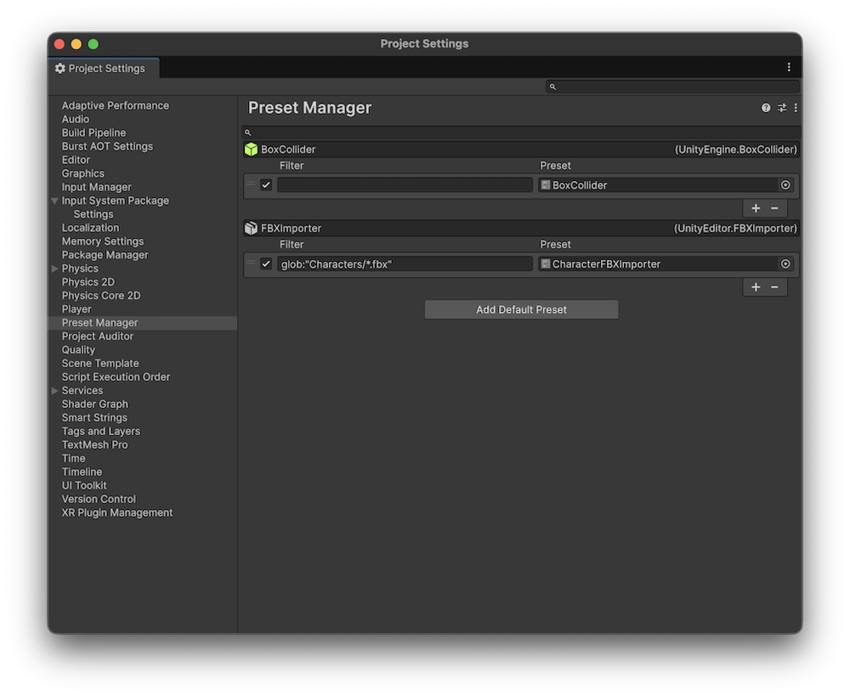
| Property | Description |
|---|---|
| Filter | Defines which components or importers the preset is applied to. For more information, refer to Filter default preset assets. |
| Preset | Sets the preset you want to use. By default, a preset applies to all components or asset importers of that preset type once you create it. If you want to only apply it to specific components or asset types, use the Filter field to define when to apply the preset. |
| Add Default Preset | Choose the Importer, ComponentA functional part of a GameObject. A GameObject can contain any number of components. Unity has many built-in components, and you can create your own by writing scripts that inherit from MonoBehaviour. More info See in Glossary, or ScriptableObject to add a preset to. |
Additional resources
Copyright © 2023 Unity Technologies
优美缔软件(上海)有限公司 版权所有
"Unity"、Unity 徽标及其他 Unity 商标是 Unity Technologies 或其附属机构在美国及其他地区的商标或注册商标。其他名称或品牌是其各自所有者的商标。
公安部备案号:
31010902002961