Vignette
The Vignette effect darkens the edges of an image. This simulates the effect in a real-world camera lens caused by thick or stacked filters, secondary lenses, or an improper lens hood. You can use the Vignette effect to draw attention to the center of an image.
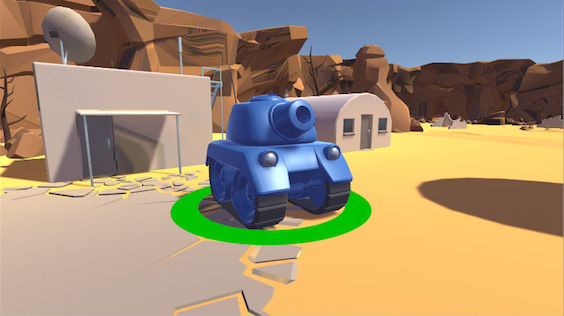
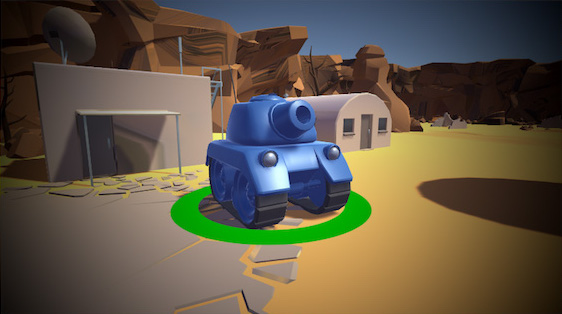
The Vignette effect in the post-processing stack has two modes:
Classic
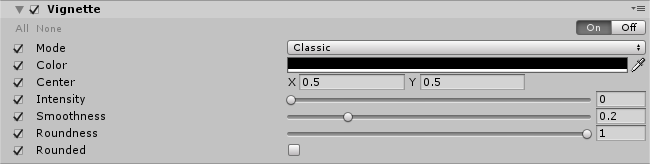
Classic mode has parametric controls for the position, shape and intensity of the Vignette. This is the most common way to use the effect.
Properties
| Property | Function |
|---|---|
| Color | Set the color of the Vignette. |
| Center | Set the Vignette center point (screen center is [0.5,0.5]). |
| Intensity | Set the amount of vignetting on screen. |
| Smoothness | Set the smoothness of the Vignette borders. |
| Roundness | Set the value to round the Vignette. Lower values will make a more squared vignette. |
| Rounded | Enable this checkbox to make the vignette perfectly round. When disable, the Vignette effect is dependent on the current aspect ratio. |
Masked
Masked mode uses a custom texture mask and multiplies it over the scene to create a Vignette effect. This mode can be used to create less common or irregular vignetting effects.

Properties
| Property | Function |
|---|---|
| Color | Set the color of the Vignette. Use the alpha channel for transparency. |
| Mask | Select a black and white mask to use as a vignette. |
| Intensity | Set the mask opacity value. |
Requirements
- Shader Model 3