Unlit Shader
The Unlit Shader lets you create Materials that are not affected by lighting. It includes options for the Surface Type, Emissive Color, and GPU Instancing. For more information about Materials, Shaders and Textures, see the Unity User Manual.
Creating an Unlit Material
New Materials in HDRP use the Lit Shader by default. To create an Unlit Shader, you need to create a Material and then make it use the Unlit Shader. To do this:
In the Unity Editor, navigate to your Project's Asset window.
Right-click the Asset Window and select Create > Material. This adds a new Material to your Unity Project’s Asset folder.
To use the Unlit Shader with your Material, click the Shader drop-down at the top of the Material Inspector, and select to HDRP > Unlit.
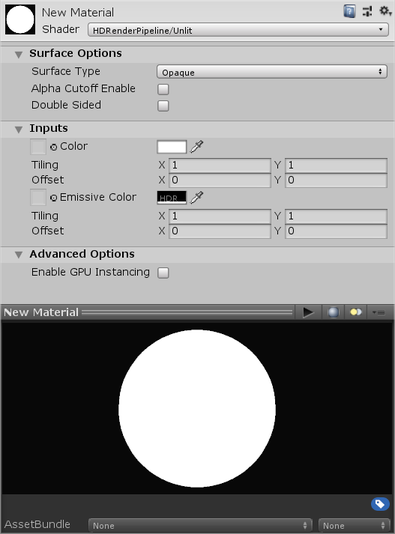
Properties
Surface Options
Surface options control the overall look of your Material's surface and how Unity renders the Material on screen.
| Property | Description |
|---|---|
| Surface type | Controls whether your Shader supports transparency or not. HDRP exposes more properties depending on the Surface Type you select. See the Surface Type documentation for more information. |
| Alpha Cutoff Enable | Controls whether your Material acts like a Cutout Shader or not. Enabling this feature exposes more properties. See the Alpha Clipping documentation for more information. |
| Double Sided | Controls whether HDRP renders both faces of the polygons in your geometry, or just the side defined by the normal. See the Double Sided documentation for more information. |
Inputs
| Property | Description |
|---|---|
| Color | The texture and base color of the Material. The RGB values define the color and the alpha channel defines the opacity. If you set a texture to this field, HDRP multiplies the texture by the color. If you do not set a texture in this field then HDRP only uses the base color to draw Meshes that use this Material. |
| - Tiling | HDRP uses the X and Y values of this property to tile the texture from the Color property on the object space x-axis and y-axis respectively. |
| - Offset | HDRP uses the X and Y values of this property to offset the texture from the Color property on the object space x-axis and y-axis respectively. |
| Emissive Color | The emission texture and HDR color this Material uses for emission. If you set an emission texture in this field then HDRP multiplies the emission texture by the HDR color. If you do not set an emission texture then HDRP only uses the HDR color to calculate the final emissive color of the Material. You can set the intensity of the HDR color within the HDR color picker. |
| - Tiling | HDRP uses the X and Y values of this property to tile the emissive texture from the Emissive Color property on the object space x-axis and y-axis respectively. |
| - Offset | HDRP uses the X and Y values of this property to offset the emissive texture from the Emissive Color property on the object space x-axis and y-axis respectively. |
Transparency Inputs
Set the Surface Type to Transparent to expose the Transparency Inputs section in the Material Inspector.
| Property | Description |
|---|---|
| Distortion | Enable this checkbox to distort the light passing through this transparent Material. Checking this box exposes the following properties. |
| - Distortion Blend Mode | Set the mode HDRP uses to blend overlayed distortion surfaces. |
| - Distortion Only | Enable this checkbox to only show the distortion effect and set all other inputs to have no effect. |
| - Distortion Depth Test | Enable this checkbox to make closer GameObjects hide the distortion effect, otherwise you can always see the effect. If you do not enable this feature, then the distortion appears on top of the rendering. |
| - Distortion Vector Map | HDRP uses the red and green channels of this texture to calculate distortion. It also uses the blue channel to manage the blur intensity between 0 and 1. By default, a texture has values between 0 and 1. To be able to produce distortion in either direction, you must remap the distortion texture between -1 and 1. HDRP provides two values you can use to remap the distortion texture. It takes the original value from the map and multiplies it by the value on the left then adds the value on the right. For example, to remap original values of 0 to 1 to be -1 to 1, enter 2 for the first value and -1 for the second value. |
| - Distortion Scale | A multiplier for the distortion effect. Set this to a value higher than 1 to amplify the effect. |
| - Distortion Blur Scale | A multiplier for the distortion blur. Set this to a value higher than 1 to amplify the blur. |
| - Distortion Blur Remapping | This handle clamps the values of the blue channel of the Distortion Vector Map. Use this to refine the blur setting. |
Advanced Options
| Property | Description |
|---|---|
| Enable GPU instancing | Tick this checkbox to tell HDRP to render meshes with the same geometry and Material/Shader in one batch when possible. This makes rendering faster. HDRP can not render Meshes in one batch if they have different Materials, or if the hardware does not support GPU instancing. |