Creating a new Shader Graph Asset
After you configure an SRP, you can create a new Shader Graph Asset. Right-click the Project window, locate Create > Shader in the context menu, then select your desired type of Shader Graph.
Unity currently supports the following graph types:
- PBR Graph
- Sub Graph
- Unlit Graph
If you're using HDRP in your project, the following HDRP-specific graph types are also available:
- Decal Graph
- Fabric Graph
- Hair Graph
- Lit Graph
- StackLit Graph
- Unlit Graph
Double-click your newly created Shader Graph Asset to open it in the Shader Graph window.
Shader Graph window
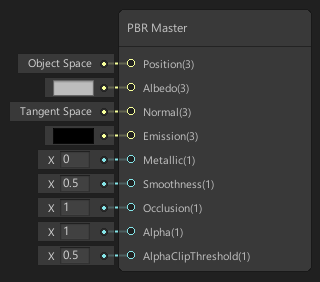
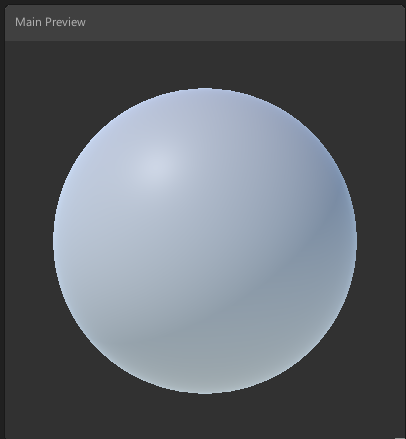
The Shader Graph window consists of the Master Node, the Preview Window, and the Blackboard.
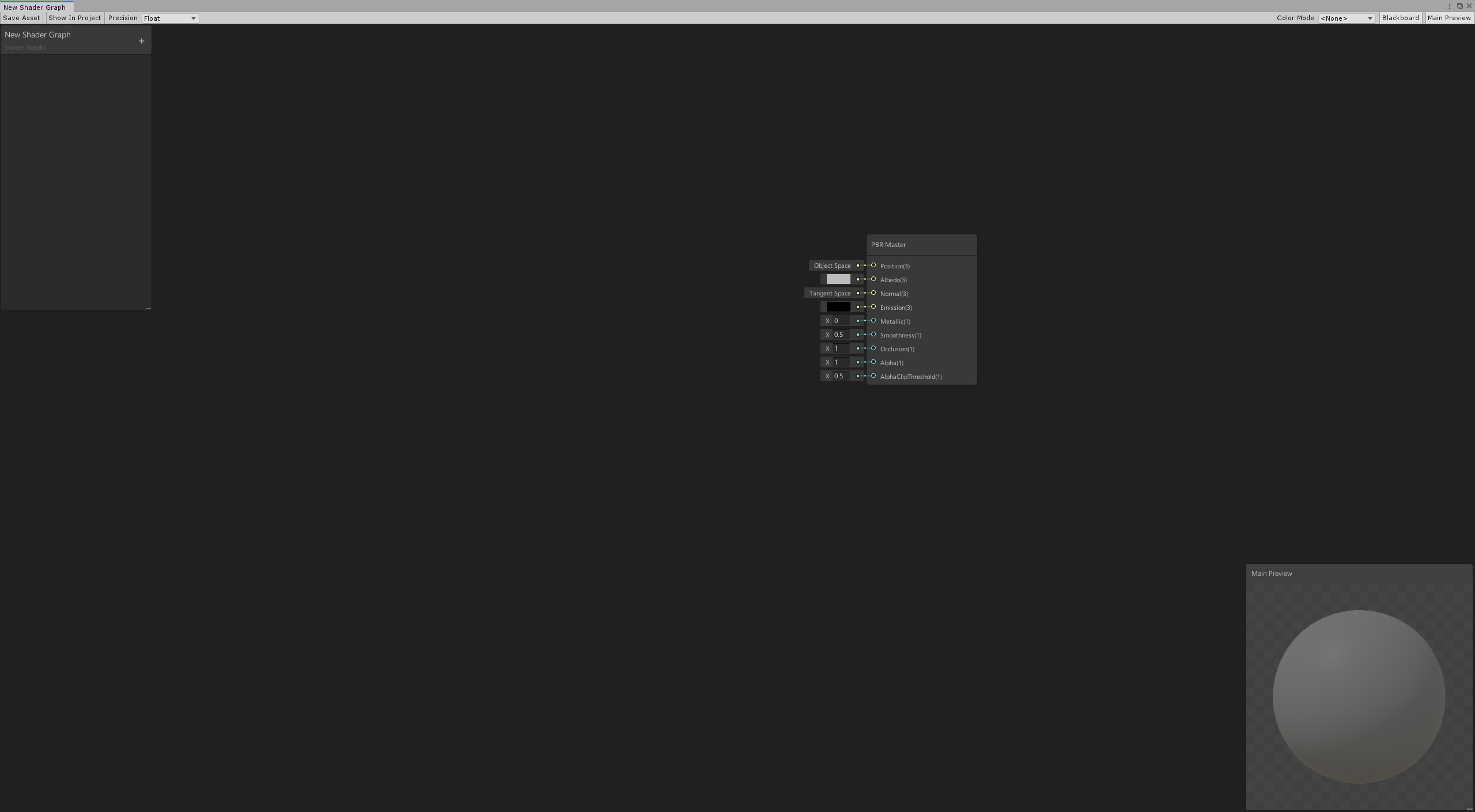
Master node
The final connection that determines your shader output. See Master Node for more information.
Preview window
An area to preview the current shader output. Here, you can rotate the object, and zoom in and out. You can also change the basic mesh on which the shader is previewed. See Master Preview for more information.
Blackboard
An area that contains all of the shader's properties in a single, collected view. Use the Blackboard to add, remove, rename, and reorder properties. See Blackboard for more information.

After you've set up a project, and become familiar with the Shader Graph window, see My first Shader Graph for more information on how to get started.