Using the Reflect Viewer
Interface overview
The default Reflect Viewer includes the following buttons:
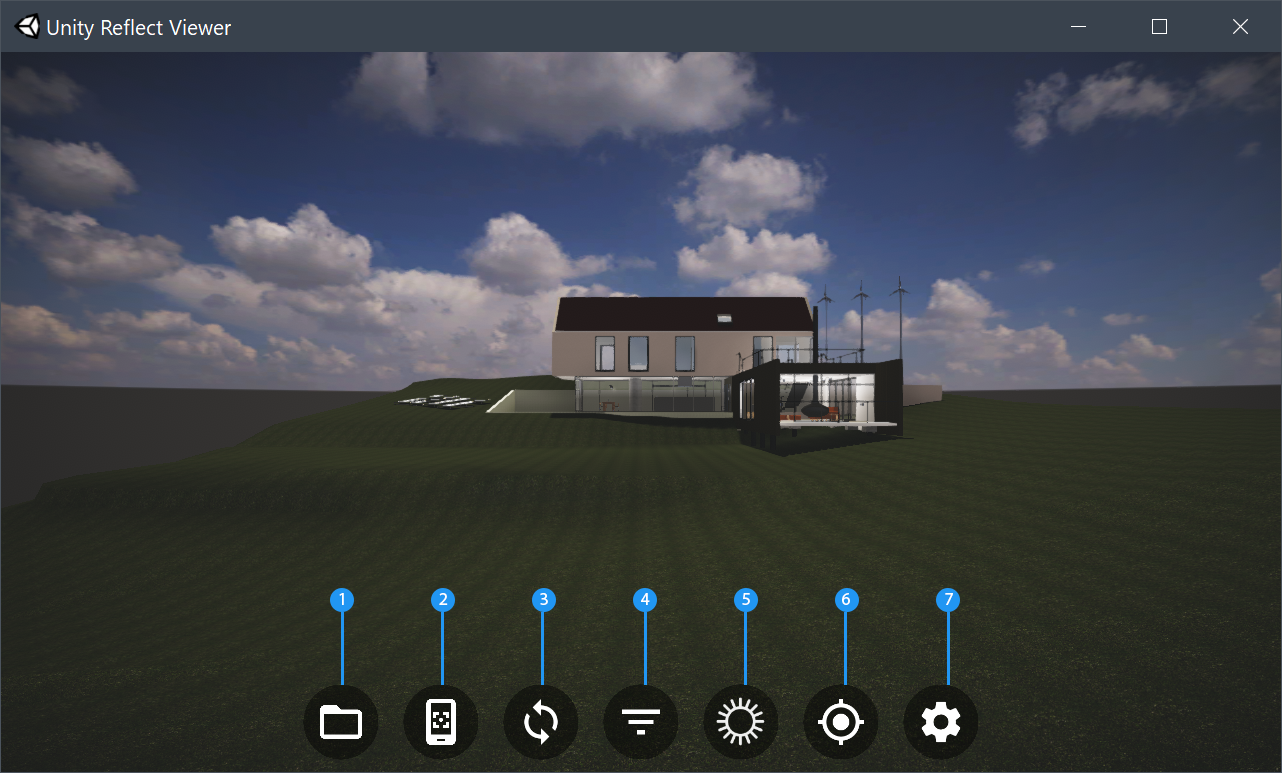
(1) Projects
The Viewer opens to the Projects screen by default. This screen lets you log in and load a project in the Viewer.
Click the Projects button to access this screen again, to log out, or to load a different project.
(2) Device Mode
Click or tap the Device Mode button to turn Headset VR mode on or off.
(3) Sync Status
Click the Sync Status button to start the Reflect sync service. When the icon is green, the service is active.
(4) BIM Filter
Click the BIM Filter button to toggle the visibility of BIM data.
(5) Sun Study
Adjust the position of the sun based on a specific time, date, and location.
(6) Reset Camera
The Reflect Viewer lets you zoom in and rotate the camera using the standard controls for your platform. Click this button to reset the camera to its default position.
(7) Settings
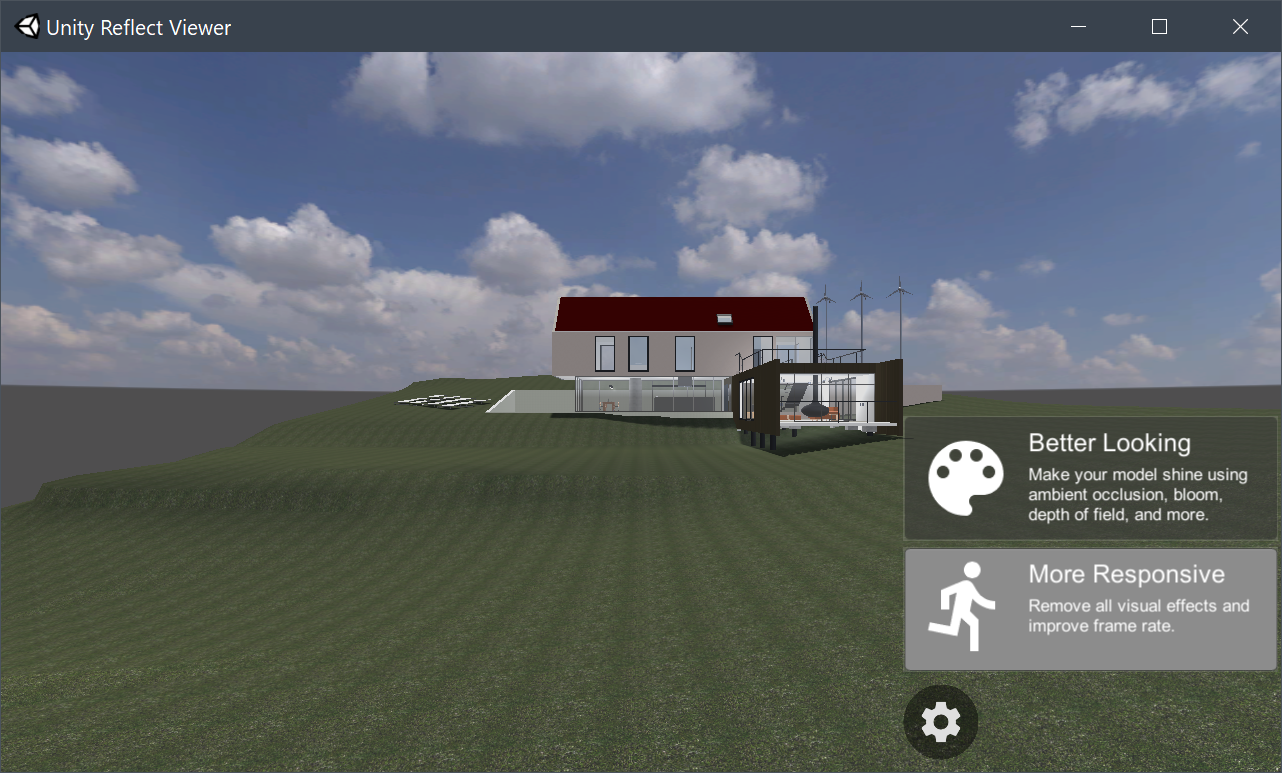
Click the Settings button to switch between Viewer modes.