창 간에 드래그 앤 드롭 리스트와 트리 뷰 생성
버전: 2023.2+
드래그 앤 드롭은__ UI__(사용자 인터페이스) 사용자가 애플리케이션과 상호 작용하도록 해 줍니다. Unity는 현재 3개의 UI 시스템을 지원합니다. 자세한 정보
See in Glossary 디자인에서 흔히 사용되는 기능입니다. UI 툴킷을 사용하여 커스텀 에디터 창에서 또는 Unity로 빌드한 애플리케이션에서 드래그 앤 드롭 UI를 생성할 수 있습니다. 이 예시에서는 커스텀 에디터 창 내에서 ListView와 TreeView를 사용하여 드래그 앤 드롭 UI를 생성하는 방법을 보여 줍니다.
개요 예시
이 예시에서는 로비와 두 개의 팀이 포함된 분할 창을 커스텀 에디터 창 안에 생성합니다. 로비는 ListView를 사용하여 생성합니다. 데모용으로 한 팀은 MultiColumnListView로 생성하고 다른 팀은 TreeView로 생성합니다. 이 예시에서는 토글을 사용하여 드래그 앤 드롭 작업을 활성화 및 비활성화합니다. 활성화하면 아래와 같이 플레이어를 드래그하여 순서를 변경하고 로비 리스트에서 팀 리스트로 드래그할 수 있습니다.
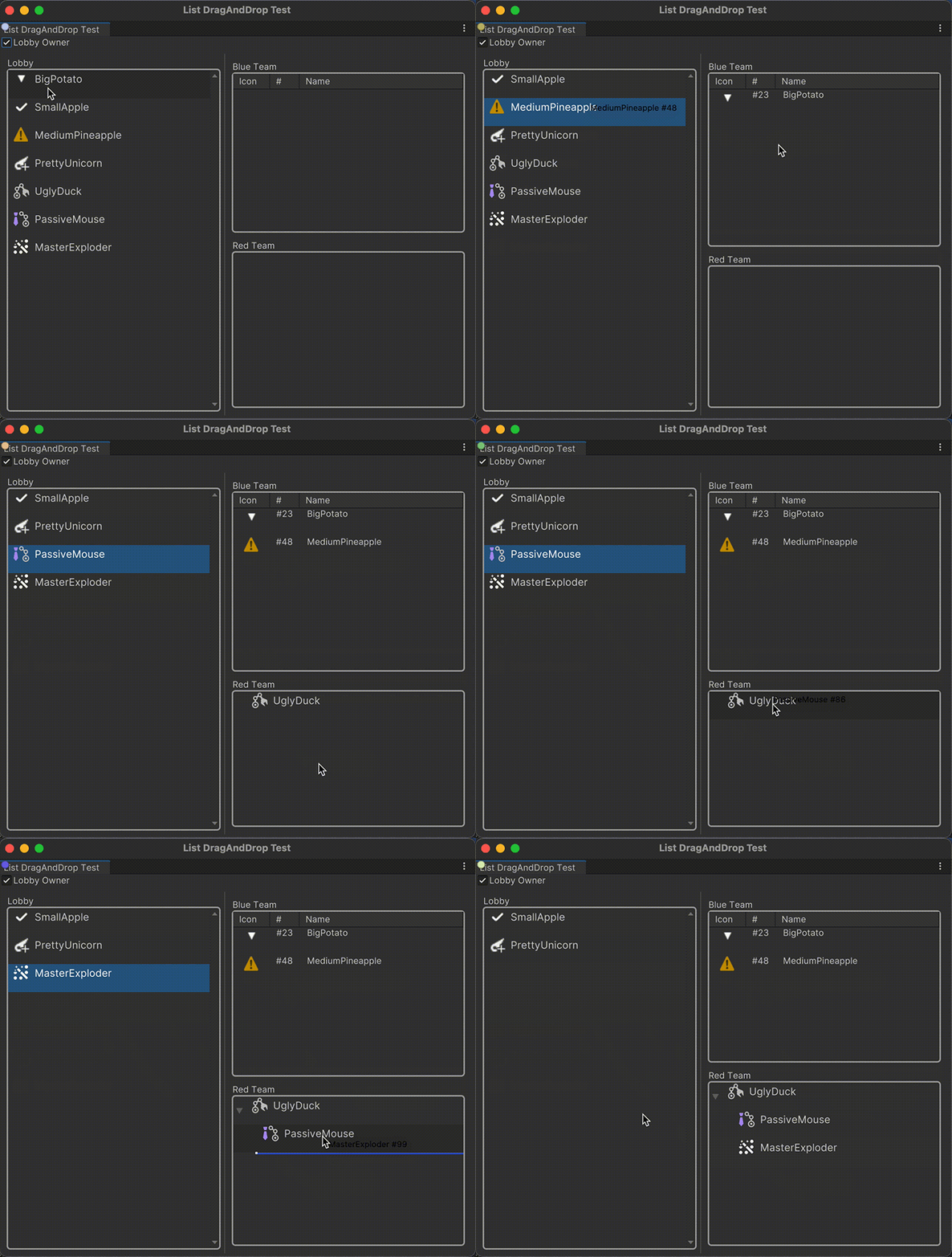
이 예시에서 만든 완성된 파일은 이 GitHub 저장소에서 찾을 수 있습니다.
선행 조건
이 가이드는 Unity 에디터, UI 툴킷, C# 스크립팅에 익숙한 개발자를 위한 가이드입니다. 시작하기 전에 먼저 다음을 숙지하십시오.
플레이어 데이터 생성
먼저 로비에 있는 플레이어 리스트를 관리할 에셋을 생성합니다. 플레이어의 데이터를 나타내는 PlayerData 구조체를 정의하는 스크립트를 생성합니다. 구조체에는 문자열 이름, 정수, Texture2D 오브젝트 아이콘과 같은 세 개의 필드가 있습니다. 필드의 값을 직렬화하고 Unity의 데이터 포맷으로 저장하도록 [SerializeField] 속성으로 필드를 표시합니다. 드래그 앤 드롭 UI의 플레이어 데이터를 관리할 컬렉션 데이터베이스 에셋을 생성합니다. 컬렉션 데이터베이스 에셋에는 Unity 에디터에서 설정할 수 있는 직렬화된 PlayerData 오브젝트 리스트가 포함되어 있습니다.
임의의 템플릿을 사용하여 Unity에서 프로젝트를 생성합니다.
프로젝트 창의 Assets 폴더에 스크립트 파일을 저장할
Scripts폴더를 만듭니다.Scripts 폴더에
Data라는 폴더를 만듭니다.-
Data 폴더에 다음 내용이 포함된
PlayerData.cs라는 C# 스크립트를 생성합니다.using System; using UnityEngine; namespace CollectionTests { // Make the struct serializable, so its values can be stored in Unity's data format [Serializable] public struct PlayerData { // Declare private fields for the player's name, number, and icon, with the SerializeField attribute [SerializeField] string name; [SerializeField] int number; [SerializeField] Texture2D icon; // Calculate a unique identifier for the player based on their name and number public int id => name.GetHashCode() + 27 * number; // Define read-only properties for accessing the private fields public string Name => name; public int Number => number; public Texture2D Icon => icon; // Override the ToString() method to return a formatted string representation of the player data public override string ToString() { return $"{Name} #{Number.ToString()}"; } } } -
Data 폴더에 다음 내용이 포함된
CollectionDatabase.cs라는 C# 스크립트를 생성합니다.using System.Collections.Generic; using UnityEngine; namespace CollectionTests { // Create a CollectionDatabase object that you can create as an asset via the Asset menu. [CreateAssetMenu] public class CollectionDatabase : ScriptableObject { // Declare a private list of PlayerData that can set in the Unity Editor. [SerializeField] List<PlayerData> m_InitialLobbyList; public IEnumerable<PlayerData> initialLobbyList => m_InitialLobbyList; } } Assets 폴더에
Resources라는 폴더를 만듭니다.Resources 폴더에서 오른쪽 클릭하고 Create > Collection Database를 선택합니다. 그러면 새로운 컬렉션 데이터베이스 에셋이 생성됩니다.
컬렉션 데이터베이스 에셋의 인스펙터 창에서 몇 명의 플레이어를 Lobby 리스트에 추가합니다. 플레이어를 원하는 만큼 추가할 수 있습니다.
데이터를 표시할 커스텀 컨트롤 생성
PlayerDataElement 및 PlayerItemView라는 커스텀 컨트롤을 생성하여 플레이어의 데이터를 표시합니다. PlayerItemView 컨트롤은 PlayerData 오브젝트에 해당 데이터 컨텍스트로 바인딩됩니다.
Scripts 폴더에
UI라는 폴더를 만듭니다.-
UI 폴더에 다음 내용을 포함하는
PlayerDataElement.cs라는 C# 스크립트를 생성합니다.using System; using UnityEngine.UIElements; namespace CollectionTests { [UxmlElement] public partial class PlayerDataElement : VisualElement { public PlayerData data { get; private set; } public int id { get; set; } public virtual void Bind(PlayerData player) { data = player; } public virtual void Reset() { data = default; id = -1; } } } -
UI 폴더에 다음 내용을 포함하는
PlayerItemView.cs라는 C# 스크립트를 생성합니다.using System; using UnityEngine.UIElements; namespace CollectionTests { [UxmlElement] public partial class PlayerItemView : PlayerDataElement { VisualElement m_Icon; Label m_Name; // Bind the player data to the UI. public override void Bind(PlayerData player) { base.Bind(player); m_Icon ??= this.Q("Icon"); m_Name ??= this.Q<Label>(); m_Icon.style.backgroundImage = player.Icon; m_Name.text = player.Name; } } }
UI의 레이아웃 및 스타일 정의
USS 파일을 생성하여 UI의 스타일을 정의합니다. 두 개의 UXML 문서를 생성하여 플레이어 아이템 뷰와 메인 뷰의 UI 레이아웃을 정의합니다. 메인 뷰에서 드래그하여 리스트 항목 순서를 변경하려면 ListView, MultiColumnListView, TreeView의 reorderable 속성을 true로 설정합니다.
Asset 폴더에
UI라는 폴더를 만들어 UXML 및 USS 파일을 저장합니다.-
UI 폴더에 다음 내용이 포함된
main.uss라는 USS 파일을 생성합니다..team-list { border-color: rgb(164, 164, 164); border-width: 2px; border-top-left-radius: 5px; border-bottom-left-radius: 5px; border-top-right-radius: 5px; border-bottom-right-radius: 5px; flex-grow: 1; } .section-container { padding: 5px; flex-grow: 1; background-color: rgba(0, 0, 0, 0); } .unity-list-view__empty-label { display: none; } #Container { flex-direction: row; align-items: center; padding-left: 6px; } #Icon { width: 24px; height: 24px; } #PlayerName { flex-grow: 1; -unity-text-align: middle-left; font-size: 14px; padding-left: 6px; } .split-window{ min-width: 250px; } .main-view{ flex-grow: 1; background-color: rgba(0, 0, 0, 0); flex-direction: column; } -
UI 폴더에 다음 내용이 포함된
PlayerItemView.uxml이라는 UXML 파일을 생성합니다.<ui:UXML xmlns:ui="UnityEngine.UIElements" xmlns:uie="UnityEditor.UIElements" editor-extension-mode="False"> <Style src="main.uss" /> <CollectionTests.PlayerItemView name="container"> <ui:VisualElement name="Icon" /> <ui:Label name="PlayerName"/> </CollectionTests.PlayerItemView> </ui:UXML> -
UI 폴더에 다음 내용이 포함된
ListDragAndDropTestWindow.uxml이라는 UXML 파일을 생성합니다.<ui:UXML xmlns:ui="UnityEngine.UIElements" xmlns:uie="UnityEditor.UIElements" xsi="http://www.w3.org/2001/XMLSchema-instance" engine="UnityEngine.UIElements" editor="UnityEditor.UIElements" noNamespaceSchemaLocation="../../../UIElementsSchema/UIElements.xsd" editor-extension-mode="False"> <Style src="main.uss" /> <ui:VisualElement class="main-view"> <ui:Toggle name="Toggle-LobbyOwner" text="Lobby Owner" /> <ui:VisualElement class="section-container" > <ui:TwoPaneSplitView fixed-pane-initial-dimension="300"> <ui:VisualElement class="split-window" > <ui:VisualElement name="LobbyContainer" class="section-container" > <ui:Label tabindex="-1" text="Lobby" display-tooltip-when-elided="true" name="Name-Lobby" /> <ui:ListView name="ListView-Lobby" reorderable="true" selection-type="Multiple" class="team-list" /> </ui:VisualElement> </ui:VisualElement> <ui:VisualElement class="split-window" > <ui:VisualElement name="TeamContainer" class="section-container" > <ui:VisualElement name="BlueTeam" class="section-container" > <ui:Label tabindex="-1" text="Blue Team" display-tooltip-when-elided="true" name="Name-BlueTeam" /> <ui:MultiColumnListView name="ListView-BlueTeam" reorderable="true" selection-type="Multiple" class="team-list" > <ui:Columns> <ui:Column name="icon" title="Icon" width="50" resizable="false" /> <ui:Column name="number" title="#" width="40" resizable="false" /> <ui:Column name="name" stretchable="true" title="Name" /> </ui:Columns> </ui:MultiColumnListView> </ui:VisualElement> <ui:VisualElement name="RedTeam" class="section-container" > <ui:Label tabindex="-1" text="Red Team" display-tooltip-when-elided="true" name="Name-RedTeam" /> <ui:TreeView name="TreeView-RedTeam" reorderable="true" selection-type="Multiple" class="team-list" /> </ui:VisualElement> </ui:VisualElement> </ui:VisualElement> </ui:TwoPaneSplitView> </ui:VisualElement> </ui:VisualElement> </ui:UXML>
드래그 앤 드롭 작업 구현
로비와 팀 리스트를 설정하고 이전에 생성한 플레이어 데이터에 바인드하는 스크립트를 생성합니다. 이 스크립트는 로비와 팀 리스트 간 드래그 앤 드롭 작업을 구현합니다.
Scripts 폴더에
Controllers라는 폴더를 만듭니다.-
Controllers 폴더에 다음 내용을 포함하는
LobbyController.cs라는 C# 스크립트를 생성합니다.using System; using System.Collections.Generic; using UnityEngine; using UnityEngine.UIElements; namespace CollectionTests { public class LobbyController { const string k_DraggedItemsKey = "DraggedIndices"; const string k_SourceKey = "SourceCollection"; ListView m_LobbyListView; MultiColumnListView m_BlueTeamListView; TreeView m_RedTeamTreeView; Toggle m_IsOwnerToggle; List<PlayerData> m_LobbyItemsSource; List<PlayerData> m_BlueTeamItemsSource = new(); List<TreeViewItemData<PlayerData>> m_RedTeamItemsSource = new(); public LobbyController(VisualElement rootVisualElement, VisualTreeAsset playerItemAsset, CollectionDatabase collectionDatabase) { // Grab references m_IsOwnerToggle = rootVisualElement.Q<Toggle>("Toggle-LobbyOwner"); m_LobbyListView = rootVisualElement.Q<ListView>("ListView-Lobby"); m_BlueTeamListView = rootVisualElement.Q<MultiColumnListView>("ListView-BlueTeam"); m_RedTeamTreeView = rootVisualElement.Q<TreeView>("TreeView-RedTeam"); m_LobbyItemsSource = new List<PlayerData>(); foreach (var item in collectionDatabase.initialLobbyList) { m_LobbyItemsSource.Add(item); } m_LobbyListView.makeItem = MakeItem; m_LobbyListView.bindItem = (e, i) => BindItem(e, i, m_LobbyItemsSource[i]); m_LobbyListView.destroyItem = DestroyItem; m_LobbyListView.fixedItemHeight = 38; m_LobbyListView.itemsSource = m_LobbyItemsSource; m_LobbyListView.canStartDrag += OnCanStartDrag; m_LobbyListView.setupDragAndDrop += args => OnSetupDragAndDrop(args, m_LobbyListView); m_LobbyListView.dragAndDropUpdate += args => OnDragAndDropUpdate(args, m_LobbyListView, true); m_LobbyListView.handleDrop += args => OnHandleDrop(args, m_LobbyListView, true); var scrollView = m_LobbyListView.Q<ScrollView>(); scrollView.touchScrollBehavior = ScrollView.TouchScrollBehavior.Elastic; scrollView.verticalScrollerVisibility = ScrollerVisibility.AlwaysVisible; m_BlueTeamListView.columns["icon"].makeCell = () => new PlayerDataElement { style = { width = 24, height = 24, alignSelf = Align.Center } }; m_BlueTeamListView.columns["icon"].bindCell = (element, i) => { BindItem(element, i, m_BlueTeamItemsSource[i]); element.style.backgroundImage = m_BlueTeamItemsSource[i].Icon; }; m_BlueTeamListView.columns["number"].makeCell = () => new Label { style = { alignSelf = Align.Center } }; m_BlueTeamListView.columns["number"].bindCell = (element, i) => ((Label)element).text = $"#{m_BlueTeamItemsSource[i].Number}"; m_BlueTeamListView.columns["name"].makeCell = () => new Label { style = { paddingLeft = 10 } }; m_BlueTeamListView.columns["name"].bindCell = (element, i) => ((Label)element).text = m_BlueTeamItemsSource[i].Name; m_BlueTeamListView.fixedItemHeight = 38; m_BlueTeamListView.reorderable = false; m_BlueTeamListView.itemsSource = m_BlueTeamItemsSource; m_BlueTeamListView.canStartDrag += OnCanStartDrag; m_BlueTeamListView.setupDragAndDrop += args => OnSetupDragAndDrop(args, m_BlueTeamListView); m_BlueTeamListView.dragAndDropUpdate += args => OnDragAndDropUpdate(args, m_BlueTeamListView); m_BlueTeamListView.handleDrop += args => OnHandleDrop(args, m_BlueTeamListView); m_RedTeamTreeView.makeItem = MakeItem; m_RedTeamTreeView.bindItem = (e, i) => BindItem(e, m_RedTeamTreeView.GetIdForIndex(i), (PlayerData)m_RedTeamTreeView.viewController.GetItemForIndex(i)); m_RedTeamTreeView.destroyItem = DestroyItem; m_RedTeamTreeView.fixedItemHeight = 38; m_RedTeamTreeView.SetRootItems(m_RedTeamItemsSource); m_RedTeamTreeView.canStartDrag += OnCanStartDrag; m_RedTeamTreeView.setupDragAndDrop += args => OnSetupDragAndDrop(args, m_RedTeamTreeView); m_RedTeamTreeView.dragAndDropUpdate += args => OnDragAndDropUpdate(args, m_RedTeamTreeView); m_RedTeamTreeView.handleDrop += args => OnHandleDrop(args, m_RedTeamTreeView); VisualElement MakeItem() { return playerItemAsset.Instantiate(); } static void BindItem(VisualElement element, int index, PlayerData data) { var playerView = element.Q<PlayerDataElement>(); playerView.Bind(data); playerView.id = index; } static void DestroyItem(VisualElement element) { var playerView = element.Q<PlayerDataElement>(); playerView.Reset(); } bool OnCanStartDrag(CanStartDragArgs _) => m_IsOwnerToggle.value; StartDragArgs OnSetupDragAndDrop(SetupDragAndDropArgs args, BaseVerticalCollectionView source) { var playerView = args.draggedElement.Q<PlayerDataElement>(); if (playerView == null) return args.startDragArgs; var startDragArgs = new StartDragArgs(args.startDragArgs.title, DragVisualMode.Move); startDragArgs.SetGenericData(k_SourceKey, source); var hasSelection = false; foreach (var id in args.selectedIds) { hasSelection = true; break; } startDragArgs.SetGenericData(k_DraggedItemsKey, hasSelection ? args.selectedIds : new List<int> { playerView.id }); return startDragArgs; } DragVisualMode OnDragAndDropUpdate(HandleDragAndDropArgs args, BaseVerticalCollectionView destination, bool isLobby = false) { var source = args.dragAndDropData.GetGenericData(k_SourceKey); if (source == destination) return DragVisualMode.None; return !isLobby && destination.itemsSource.Count >= 3 ? DragVisualMode.Rejected : DragVisualMode.Move; } DragVisualMode OnHandleDrop(HandleDragAndDropArgs args, BaseVerticalCollectionView destination, bool isLobby = false) { if (args.dragAndDropData.unityObjectReferences != null) { var objectsToString = string.Empty; foreach (var obj in args.dragAndDropData.unityObjectReferences) { objectsToString += $"{obj.name}, "; } if (!string.IsNullOrEmpty(objectsToString)) { Debug.Log($"That was {objectsToString}"); return DragVisualMode.Move; } } if (args.dragAndDropData.GetGenericData(k_DraggedItemsKey) is not List<int> draggedIds) throw new ArgumentNullException($"Indices are null."); if (args.dragAndDropData.GetGenericData(k_SourceKey) is not BaseVerticalCollectionView source) throw new ArgumentNullException($"Source is null."); // Let default reordering happen. if (source == destination) return DragVisualMode.None; // Be coherent with the dragAndDropUpdate condition. if (!isLobby && destination.itemsSource.Count >= 3) return DragVisualMode.Rejected; var treeViewSource = source as BaseTreeView; // ******************************************************** // Add items first, from item indices in the source. // ******************************************************** // Gather ids from dragged indices var ids = new List<int>(); foreach (var id in draggedIds) { ids.Add(id); } // Special TreeView case, we need to gather children or selected indices. if (treeViewSource != null) { GatherChildrenIds(ids, treeViewSource); } if (destination is BaseTreeView treeView) { foreach (var id in ids) { var data = (PlayerData)source.viewController.GetItemForId(id); treeView.AddItem(new TreeViewItemData<PlayerData>(data.id, data), args.parentId, args.childIndex, false); } treeView.viewController.RebuildTree(); } else if (destination.viewController is BaseListViewController destinationListViewController) { for (var i = ids.Count - 1; i >= 0; i--) { var id = ids[i]; var data = (PlayerData)source.viewController.GetItemForId(id); destinationListViewController.itemsSource.Insert(args.insertAtIndex, data); } } else { throw new ArgumentException("Unhandled destination."); } // Then remove from the source. if (source is BaseTreeView sourceTreeView) { foreach (var id in draggedIds) { var data = (PlayerData)source.viewController.GetItemForId(id); sourceTreeView.viewController.TryRemoveItem(data.id, false); } sourceTreeView.viewController.RebuildTree(); sourceTreeView.RefreshItems(); } else if (source.viewController is BaseListViewController sourceListViewController) { sourceListViewController.RemoveItems(draggedIds); } else { throw new ArgumentException("Unhandled source."); } foreach (var id in ids) { var index = destination.viewController.GetIndexForId(id); destination.AddToSelection(index); } source.ClearSelection(); destination.RefreshItems(); LogTeamSizes(); return DragVisualMode.Move; } } void LogTeamSizes() { Debug.Log($"Blue: {m_BlueTeamListView.itemsSource.Count} / 3\tRed: {m_RedTeamTreeView.viewController.GetItemsCount()} / 3"); } static void GatherChildrenIds(List<int> ids, BaseTreeView treeView) { for (var i = 0; i < ids.Count; i++) { var id = ids[i]; var childrenIds = treeView.viewController.GetChildrenIds(id); foreach (var childId in childrenIds) { ids.Insert(i + 1, childId); i++; } } } } }
커스텀 에디터 창 생성
드래그 앤 드롭 UI를 표시할 커스텀 에디터 창을 생성합니다.
Assets 폴더에
Editor라는 폴더를 만듭니다.-
Editor 폴더에 다음 내용이 포함된
ListDragAndDropTestWindow.cs라는 C# 스크립트를 생성합니다.using System; using UnityEditor; using UnityEngine; using UnityEngine.UIElements; namespace CollectionTests { public class ListDragAndDropTestWindow : EditorWindow { [MenuItem("Collection Tests/List DragAndDrop Window")] public static void ShowExample() { var wnd = GetWindow<ListDragAndDropTestWindow>(); wnd.titleContent = new GUIContent("List DragAndDrop Test"); } public void CreateGUI() { // Each editor window contains a root VisualElement object var root = rootVisualElement; // Import UXML var visualTreeAsset = EditorGUIUtility.Load("Assets/create-drag-and-drop-list-treeview/UI/ListDragAndDropTestWindow.uxml") as VisualTreeAsset; visualTreeAsset.CloneTree(root); // Load the PlayerItemView.uxml file var playerItemAsset = EditorGUIUtility.Load("Assets/create-drag-and-drop-list-treeview/UI/PlayerItemView.uxml") as VisualTreeAsset; //Load the CollectionDatabase from the Resources folder var collectionDatabase = Resources.Load<CollectionDatabase>("CollectionDatabaseAsset"); // Create the LobbyController var lobbyController = new LobbyController(root, playerItemAsset, collectionDatabase); } } }
UI 테스트
테스트를 위해 Lobby 리스트의 플레이어 순서를 변경하고 Lobby Owner 체크박스를 선택하면 플레이어를 Lobby 리스트에서 팀 리스트로 이동합니다. Red Team 리스트에서 플레이어의 계층 구조를 변경할 수도 있습니다. LobbyController.cs 스크립트에 설정한 조건에 따라 각 팀에 최대 3명의 플레이어를 추가할 수 있습니다.
- 메인 메뉴에서 Collection Tests > List DragAndDrop Window를 선택합니다.
- List DragAndDrop Test 창에서 Lobby Owner 체크박스를 선택합니다.
- Lobby 리스트에서 플레이어를 드래그하여 순서를 변경합니다.
- 플레이어를 Lobby 리스트에서 팀 리스트로 드래그합니다.
- Red Team 리스트의 플레이어를 드래그하여 계층 구조를 변경합니다.
추가 리소스
Copyright © 2023 Unity Technologies
优美缔软件(上海)有限公司 版权所有
"Unity"、Unity 徽标及其他 Unity 商标是 Unity Technologies 或其附属机构在美国及其他地区的商标或注册商标。其他名称或品牌是其各自所有者的商标。
公安部备案号:
31010902002961