在窗口之间创建拖放列表和树视图
版本:2023.2+
拖放是__ UI__(即用户界面,User Interface)让用户能够与您的应用程序进行交互。Unity 目前支持三种 UI 系统。更多信息
See in Glossary 设计中的一种常见功能。您可以使用 UI 工具包在自定义 Editor 窗口或 Unity 构建的应用程序中创建拖放式 UI。此示例演示了如何在自定义 Editor 窗口中使用 ListView 和 TreeView 创建拖放式 UI。
示例概述
该示例会创建拆分窗口,其中将包含自定义 Editor 窗口中的一个大厅 (lobby) 和两个队伍 (team)。此大厅是使用 ListView 创建的。出于演示目的,一个队伍使用 MultiColumnListView 创建,另一个队伍使用 TreeView 创建。该示例使用 Toggle 来启用和禁用拖放操作。启用后,您可以拖动玩家重新排序,并将玩家从大厅列表拖动到队伍列表中,如下所示:
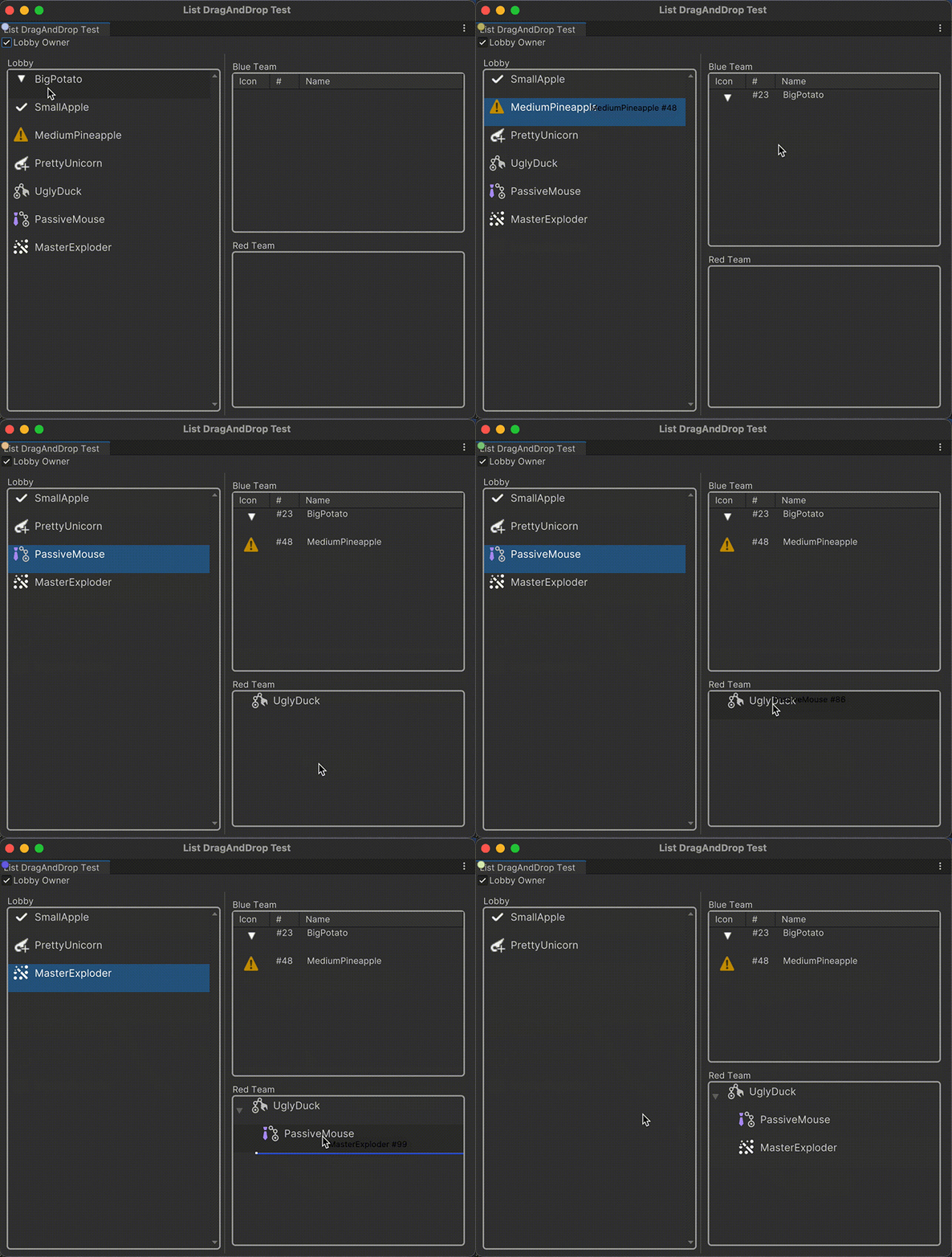
您可以在此 GitHub 代码仓库中找到此示例创建的完整文件。
先决条件
本指南适用于熟悉 Unity 编辑器、UI 工具包和 C# 脚本的开发者。在开始之前,请熟悉以下内容:
创建玩家数据
首先,创建一个资源来管理大厅中的玩家列表。创建一个脚本来定义 PlayerData 的结构,该结构代表玩家的数据。该结构有三个字段:字符串名称、整数和 Texture2D 对象图标。使用 [SerializeField] 属性标记字段,从而可以将它们的值序列化并以 Unity 的数据格式进行存储。创建一个集合数据库资源来管理拖放式 UI 的玩家数据。集合数据库资源包含可在 Unity 编辑器中设置的 PlayerData 对象的序列化列表。
使用任何模板在 Unity 中创建项目。
在项目 (Project) 窗口的 Assets 文件夹中,创建一个名称为
Scripts的文件夹来存储脚本文件。在 Scripts 文件夹中,创建一个名称为
Data的文件夹。-
在 Data 文件夹中,创建一个名称为
PlayerData.cs并包含以下内容的 C# 脚本文件:using System; using UnityEngine; namespace CollectionTests { // Make the struct serializable, so its values can be stored in Unity's data format [Serializable] public struct PlayerData { // Declare private fields for the player's name, number, and icon, with the SerializeField attribute [SerializeField] string name; [SerializeField] int number; [SerializeField] Texture2D icon; // Calculate a unique identifier for the player based on their name and number public int id => name.GetHashCode() + 27 * number; // Define read-only properties for accessing the private fields public string Name => name; public int Number => number; public Texture2D Icon => icon; // Override the ToString() method to return a formatted string representation of the player data public override string ToString() { return $"{Name} #{Number.ToString()}"; } } } -
在 Data 文件夹中,创建一个名称为
CollectionDatabase.cs并包含以下内容的 C# 脚本文件:using System.Collections.Generic; using UnityEngine; namespace CollectionTests { // Create a CollectionDatabase object that you can create as an asset via the Asset menu. [CreateAssetMenu] public class CollectionDatabase : ScriptableObject { // Declare a private list of PlayerData that can set in the Unity Editor. [SerializeField] List<PlayerData> m_InitialLobbyList; public IEnumerable<PlayerData> initialLobbyList => m_InitialLobbyList; } } 在 Assets 文件夹中,创建一个名称为
Resources的文件夹。右键点击 Resources 文件夹,然后选择创建 (Create) > 集合数据库 (Collection Database)。这会创建新的集合数据库资源。
在集合数据库资源的检视面板 (Inspector) 窗口中,将一些玩家添加到 Lobby 列表中。您可以添加任意数量的玩家。
创建自定义控件以显示数据
创建名为 PlayerDataElement 和 PlayerItemView 的自定义控件以显示玩家的数据。PlayerItemView 控件绑定到 PlayerData 对象作为其数据上下文。
在 Scripts 文件夹中,创建一个名称为
UI的文件夹。-
在 UI 文件夹中,创建一个名称为
PlayerDataElement.cs并包含以下内容的 C# 脚本:using System; using UnityEngine.UIElements; namespace CollectionTests { [UxmlElement] public partial class PlayerDataElement : VisualElement { public PlayerData data { get; private set; } public int id { get; set; } public virtual void Bind(PlayerData player) { data = player; } public virtual void Reset() { data = default; id = -1; } } } -
在 UI 文件夹中,创建一个名称为
PlayerItemView.cs并包含以下内容的 C# 脚本:using System; using UnityEngine.UIElements; namespace CollectionTests { [UxmlElement] public partial class PlayerItemView : PlayerDataElement { VisualElement m_Icon; Label m_Name; // Bind the player data to the UI. public override void Bind(PlayerData player) { base.Bind(player); m_Icon ??= this.Q("Icon"); m_Name ??= this.Q<Label>(); m_Icon.style.backgroundImage = player.Icon; m_Name.text = player.Name; } } }
定义 UI 的布局和样式
创建一个 USS 文件来定义 UI 的样式。创建两个 UXML 文档来定义玩家项视图和主视图的 UI 布局。在主视图中,要通过拖动启用列表项的重新排序,请将 ListView、MultiColumnListView 和 TreeView 的 reorderable 属性设置为 true。
在 Assets 文件夹中,创建一个名称为
UI的文件夹来存储 UXML 和 USS 文件。-
在 UI 文件夹中,创建一个名称为
main.uss并包含以下内容的 USS 文件:.team-list { border-color: rgb(164, 164, 164); border-width: 2px; border-top-left-radius: 5px; border-bottom-left-radius: 5px; border-top-right-radius: 5px; border-bottom-right-radius: 5px; flex-grow: 1; } .section-container { padding: 5px; flex-grow: 1; background-color: rgba(0, 0, 0, 0); } .unity-list-view__empty-label { display: none; } #Container { flex-direction: row; align-items: center; padding-left: 6px; } #Icon { width: 24px; height: 24px; } #PlayerName { flex-grow: 1; -unity-text-align: middle-left; font-size: 14px; padding-left: 6px; } .split-window{ min-width: 250px; } .main-view{ flex-grow: 1; background-color: rgba(0, 0, 0, 0); flex-direction: column; } -
在 UI 文件夹中,创建一个名称为
PlayerItemView.uxml并包含以下内容的 UXML 文件:<ui:UXML xmlns:ui="UnityEngine.UIElements" xmlns:uie="UnityEditor.UIElements" editor-extension-mode="False"> <Style src="main.uss" /> <CollectionTests.PlayerItemView name="container"> <ui:VisualElement name="Icon" /> <ui:Label name="PlayerName"/> </CollectionTests.PlayerItemView> </ui:UXML> -
在 UI 文件夹中,创建一个名称为
ListDragAndDropTestWindow.uxml并包含以下内容的 UXML 文件:<ui:UXML xmlns:ui="UnityEngine.UIElements" xmlns:uie="UnityEditor.UIElements" xsi="http://www.w3.org/2001/XMLSchema-instance" engine="UnityEngine.UIElements" editor="UnityEditor.UIElements" noNamespaceSchemaLocation="../../../UIElementsSchema/UIElements.xsd" editor-extension-mode="False"> <Style src="main.uss" /> <ui:VisualElement class="main-view"> <ui:Toggle name="Toggle-LobbyOwner" text="Lobby Owner" /> <ui:VisualElement class="section-container" > <ui:TwoPaneSplitView fixed-pane-initial-dimension="300"> <ui:VisualElement class="split-window" > <ui:VisualElement name="LobbyContainer" class="section-container" > <ui:Label tabindex="-1" text="Lobby" display-tooltip-when-elided="true" name="Name-Lobby" /> <ui:ListView name="ListView-Lobby" reorderable="true" selection-type="Multiple" class="team-list" /> </ui:VisualElement> </ui:VisualElement> <ui:VisualElement class="split-window" > <ui:VisualElement name="TeamContainer" class="section-container" > <ui:VisualElement name="BlueTeam" class="section-container" > <ui:Label tabindex="-1" text="Blue Team" display-tooltip-when-elided="true" name="Name-BlueTeam" /> <ui:MultiColumnListView name="ListView-BlueTeam" reorderable="true" selection-type="Multiple" class="team-list" > <ui:Columns> <ui:Column name="icon" title="Icon" width="50" resizable="false" /> <ui:Column name="number" title="#" width="40" resizable="false" /> <ui:Column name="name" stretchable="true" title="Name" /> </ui:Columns> </ui:MultiColumnListView> </ui:VisualElement> <ui:VisualElement name="RedTeam" class="section-container" > <ui:Label tabindex="-1" text="Red Team" display-tooltip-when-elided="true" name="Name-RedTeam" /> <ui:TreeView name="TreeView-RedTeam" reorderable="true" selection-type="Multiple" class="team-list" /> </ui:VisualElement> </ui:VisualElement> </ui:VisualElement> </ui:TwoPaneSplitView> </ui:VisualElement> </ui:VisualElement> </ui:UXML>
实现拖放操作
创建一个脚本来设置大厅和队伍列表,并将它们绑定到先前创建的玩家数据。该脚本还实现了大厅和团队列表之间的拖放操作。
在 Scripts 文件夹中,创建一个名称为
Controllers的文件夹。-
在 Controllers 文件夹中,创建一个名称为
LobbyController.cs并包含以下内容的 C# 脚本:using System; using System.Collections.Generic; using UnityEngine; using UnityEngine.UIElements; namespace CollectionTests { public class LobbyController { const string k_DraggedItemsKey = "DraggedIndices"; const string k_SourceKey = "SourceCollection"; ListView m_LobbyListView; MultiColumnListView m_BlueTeamListView; TreeView m_RedTeamTreeView; Toggle m_IsOwnerToggle; List<PlayerData> m_LobbyItemsSource; List<PlayerData> m_BlueTeamItemsSource = new(); List<TreeViewItemData<PlayerData>> m_RedTeamItemsSource = new(); public LobbyController(VisualElement rootVisualElement, VisualTreeAsset playerItemAsset, CollectionDatabase collectionDatabase) { // Grab references m_IsOwnerToggle = rootVisualElement.Q<Toggle>("Toggle-LobbyOwner"); m_LobbyListView = rootVisualElement.Q<ListView>("ListView-Lobby"); m_BlueTeamListView = rootVisualElement.Q<MultiColumnListView>("ListView-BlueTeam"); m_RedTeamTreeView = rootVisualElement.Q<TreeView>("TreeView-RedTeam"); m_LobbyItemsSource = new List<PlayerData>(); foreach (var item in collectionDatabase.initialLobbyList) { m_LobbyItemsSource.Add(item); } m_LobbyListView.makeItem = MakeItem; m_LobbyListView.bindItem = (e, i) => BindItem(e, i, m_LobbyItemsSource[i]); m_LobbyListView.destroyItem = DestroyItem; m_LobbyListView.fixedItemHeight = 38; m_LobbyListView.itemsSource = m_LobbyItemsSource; m_LobbyListView.canStartDrag += OnCanStartDrag; m_LobbyListView.setupDragAndDrop += args => OnSetupDragAndDrop(args, m_LobbyListView); m_LobbyListView.dragAndDropUpdate += args => OnDragAndDropUpdate(args, m_LobbyListView, true); m_LobbyListView.handleDrop += args => OnHandleDrop(args, m_LobbyListView, true); var scrollView = m_LobbyListView.Q<ScrollView>(); scrollView.touchScrollBehavior = ScrollView.TouchScrollBehavior.Elastic; scrollView.verticalScrollerVisibility = ScrollerVisibility.AlwaysVisible; m_BlueTeamListView.columns["icon"].makeCell = () => new PlayerDataElement { style = { width = 24, height = 24, alignSelf = Align.Center } }; m_BlueTeamListView.columns["icon"].bindCell = (element, i) => { BindItem(element, i, m_BlueTeamItemsSource[i]); element.style.backgroundImage = m_BlueTeamItemsSource[i].Icon; }; m_BlueTeamListView.columns["number"].makeCell = () => new Label { style = { alignSelf = Align.Center } }; m_BlueTeamListView.columns["number"].bindCell = (element, i) => ((Label)element).text = $"#{m_BlueTeamItemsSource[i].Number}"; m_BlueTeamListView.columns["name"].makeCell = () => new Label { style = { paddingLeft = 10 } }; m_BlueTeamListView.columns["name"].bindCell = (element, i) => ((Label)element).text = m_BlueTeamItemsSource[i].Name; m_BlueTeamListView.fixedItemHeight = 38; m_BlueTeamListView.reorderable = false; m_BlueTeamListView.itemsSource = m_BlueTeamItemsSource; m_BlueTeamListView.canStartDrag += OnCanStartDrag; m_BlueTeamListView.setupDragAndDrop += args => OnSetupDragAndDrop(args, m_BlueTeamListView); m_BlueTeamListView.dragAndDropUpdate += args => OnDragAndDropUpdate(args, m_BlueTeamListView); m_BlueTeamListView.handleDrop += args => OnHandleDrop(args, m_BlueTeamListView); m_RedTeamTreeView.makeItem = MakeItem; m_RedTeamTreeView.bindItem = (e, i) => BindItem(e, m_RedTeamTreeView.GetIdForIndex(i), (PlayerData)m_RedTeamTreeView.viewController.GetItemForIndex(i)); m_RedTeamTreeView.destroyItem = DestroyItem; m_RedTeamTreeView.fixedItemHeight = 38; m_RedTeamTreeView.SetRootItems(m_RedTeamItemsSource); m_RedTeamTreeView.canStartDrag += OnCanStartDrag; m_RedTeamTreeView.setupDragAndDrop += args => OnSetupDragAndDrop(args, m_RedTeamTreeView); m_RedTeamTreeView.dragAndDropUpdate += args => OnDragAndDropUpdate(args, m_RedTeamTreeView); m_RedTeamTreeView.handleDrop += args => OnHandleDrop(args, m_RedTeamTreeView); VisualElement MakeItem() { return playerItemAsset.Instantiate(); } static void BindItem(VisualElement element, int index, PlayerData data) { var playerView = element.Q<PlayerDataElement>(); playerView.Bind(data); playerView.id = index; } static void DestroyItem(VisualElement element) { var playerView = element.Q<PlayerDataElement>(); playerView.Reset(); } bool OnCanStartDrag(CanStartDragArgs _) => m_IsOwnerToggle.value; StartDragArgs OnSetupDragAndDrop(SetupDragAndDropArgs args, BaseVerticalCollectionView source) { var playerView = args.draggedElement.Q<PlayerDataElement>(); if (playerView == null) return args.startDragArgs; var startDragArgs = new StartDragArgs(args.startDragArgs.title, DragVisualMode.Move); startDragArgs.SetGenericData(k_SourceKey, source); var hasSelection = false; foreach (var id in args.selectedIds) { hasSelection = true; break; } startDragArgs.SetGenericData(k_DraggedItemsKey, hasSelection ? args.selectedIds : new List<int> { playerView.id }); return startDragArgs; } DragVisualMode OnDragAndDropUpdate(HandleDragAndDropArgs args, BaseVerticalCollectionView destination, bool isLobby = false) { var source = args.dragAndDropData.GetGenericData(k_SourceKey); if (source == destination) return DragVisualMode.None; return !isLobby && destination.itemsSource.Count >= 3 ? DragVisualMode.Rejected : DragVisualMode.Move; } DragVisualMode OnHandleDrop(HandleDragAndDropArgs args, BaseVerticalCollectionView destination, bool isLobby = false) { if (args.dragAndDropData.unityObjectReferences != null) { var objectsToString = string.Empty; foreach (var obj in args.dragAndDropData.unityObjectReferences) { objectsToString += $"{obj.name}, "; } if (!string.IsNullOrEmpty(objectsToString)) { Debug.Log($"That was {objectsToString}"); return DragVisualMode.Move; } } if (args.dragAndDropData.GetGenericData(k_DraggedItemsKey) is not List<int> draggedIds) throw new ArgumentNullException($"Indices are null."); if (args.dragAndDropData.GetGenericData(k_SourceKey) is not BaseVerticalCollectionView source) throw new ArgumentNullException($"Source is null."); // Let default reordering happen. if (source == destination) return DragVisualMode.None; // Be coherent with the dragAndDropUpdate condition. if (!isLobby && destination.itemsSource.Count >= 3) return DragVisualMode.Rejected; var treeViewSource = source as BaseTreeView; // ******************************************************** // Add items first, from item indices in the source. // ******************************************************** // Gather ids from dragged indices var ids = new List<int>(); foreach (var id in draggedIds) { ids.Add(id); } // Special TreeView case, we need to gather children or selected indices. if (treeViewSource != null) { GatherChildrenIds(ids, treeViewSource); } if (destination is BaseTreeView treeView) { foreach (var id in ids) { var data = (PlayerData)source.viewController.GetItemForId(id); treeView.AddItem(new TreeViewItemData<PlayerData>(data.id, data), args.parentId, args.childIndex, false); } treeView.viewController.RebuildTree(); } else if (destination.viewController is BaseListViewController destinationListViewController) { for (var i = ids.Count - 1; i >= 0; i--) { var id = ids[i]; var data = (PlayerData)source.viewController.GetItemForId(id); destinationListViewController.itemsSource.Insert(args.insertAtIndex, data); } } else { throw new ArgumentException("Unhandled destination."); } // Then remove from the source. if (source is BaseTreeView sourceTreeView) { foreach (var id in draggedIds) { var data = (PlayerData)source.viewController.GetItemForId(id); sourceTreeView.viewController.TryRemoveItem(data.id, false); } sourceTreeView.viewController.RebuildTree(); sourceTreeView.RefreshItems(); } else if (source.viewController is BaseListViewController sourceListViewController) { sourceListViewController.RemoveItems(draggedIds); } else { throw new ArgumentException("Unhandled source."); } foreach (var id in ids) { var index = destination.viewController.GetIndexForId(id); destination.AddToSelection(index); } source.ClearSelection(); destination.RefreshItems(); LogTeamSizes(); return DragVisualMode.Move; } } void LogTeamSizes() { Debug.Log($"Blue: {m_BlueTeamListView.itemsSource.Count} / 3\tRed: {m_RedTeamTreeView.viewController.GetItemsCount()} / 3"); } static void GatherChildrenIds(List<int> ids, BaseTreeView treeView) { for (var i = 0; i < ids.Count; i++) { var id = ids[i]; var childrenIds = treeView.viewController.GetChildrenIds(id); foreach (var childId in childrenIds) { ids.Insert(i + 1, childId); i++; } } } } }
创建自定义 Editor 窗口
创建自定义 Editor 窗口以显示拖放式 UI。
在 Assets 文件夹中,创建一个名称为
Editor的文件夹。-
在 Editor 文件夹中,创建一个名称为
ListDragAndDropTestWindow.cs并包含以下内容的 C# 脚本:using System; using UnityEditor; using UnityEngine; using UnityEngine.UIElements; namespace CollectionTests { public class ListDragAndDropTestWindow : EditorWindow { [MenuItem("Collection Tests/List DragAndDrop Window")] public static void ShowExample() { var wnd = GetWindow<ListDragAndDropTestWindow>(); wnd.titleContent = new GUIContent("List DragAndDrop Test"); } public void CreateGUI() { // Each editor window contains a root VisualElement object var root = rootVisualElement; // Import UXML var visualTreeAsset = EditorGUIUtility.Load("Assets/create-drag-and-drop-list-treeview/UI/ListDragAndDropTestWindow.uxml") as VisualTreeAsset; visualTreeAsset.CloneTree(root); // Load the PlayerItemView.uxml file var playerItemAsset = EditorGUIUtility.Load("Assets/create-drag-and-drop-list-treeview/UI/PlayerItemView.uxml") as VisualTreeAsset; //Load the CollectionDatabase from the Resources folder var collectionDatabase = Resources.Load<CollectionDatabase>("CollectionDatabaseAsset"); // Create the LobbyController var lobbyController = new LobbyController(root, playerItemAsset, collectionDatabase); } } }
测试 UI
要进行测试,请更改玩家在 Lobby 列表中的顺序,并在选中 Lobby Owner 复选框时将玩家从 Lobby 列表移动到 Team 列表。还可以在红色队伍列表中更改玩家的层级视图。根据 LobbyController.cs 脚本中设置的条件,每个队伍最多可以添加三名玩家。
- 从主菜单中选择集合测试 (Collection Tests) > 列表拖放窗口 (List DragAndDrop Window)。
- 在 List DragAndDrop Test 窗口中,选中 Lobby Owner 复选框。
- 拖动 Lobby 列表中的玩家可更改其顺序。
- 将玩家从 Lobby 列表拖到 Team 列表中。
- 拖动红色队伍列表中的玩家可更改其层级视图。
其他资源
Copyright © 2023 Unity Technologies
优美缔软件(上海)有限公司 版权所有
"Unity"、Unity 徽标及其他 Unity 商标是 Unity Technologies 或其附属机构在美国及其他地区的商标或注册商标。其他名称或品牌是其各自所有者的商标。
公安部备案号:
31010902002961